
Workspace
Members and roles
Owner, Admin, Editor and Agent: who can do what.
The four roles
Every member of your workspace has exactly one role, and the role decides what they can see and change. Pick the narrowest role that lets someone do their job.
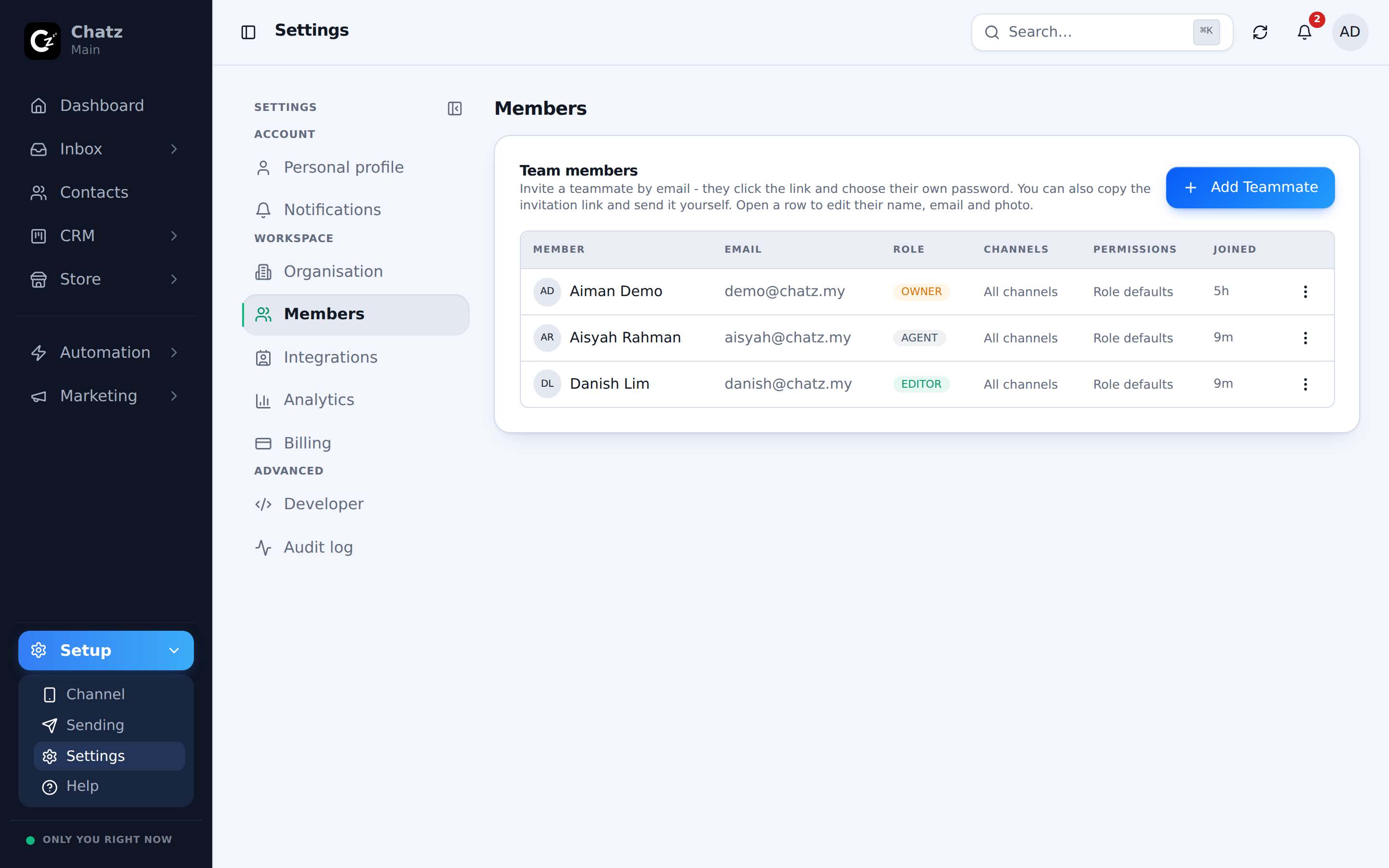
| Role | Can do |
|---|---|
| Owner | Full control of the workspace. Cannot be removed by anyone but themselves. |
| Admin | Manage settings, channels and members, but cannot transfer ownership. |
| Editor | Build flows, broadcasts and templates. No member management. |
| Agent | Reply to conversations and manage only the tickets assigned to them. |
Inviting a member
Adding someone to your workspace only needs their email address.
- Open MembersGo to Settings, then Members, in the Workspace group.
- Invite by emailEnter the teammate's email and pick a role for them.
- They acceptThe invite is sent to that address, and the member joins your workspace once they accept it.
Per-member channel access
Beyond the role, each member can be scoped to specific channels. This matters most for Agents on a team where, say, one person only handles the Instagram channel and another only handles WhatsApp: scoping keeps each agent's inbox to the conversations that are actually theirs.
Enforced on the server, not just hidden in the UI
Chatz hides buttons and pages a role should not see, but that is a convenience, not the real boundary. The server checks every action against the member's actual role and channel access, so a role limit cannot be bypassed by a direct link or a stray API call.