
Automation
Trigger history
See every flow run, what it did and where it stopped.
The runs list
Trigger History lists every time a message flow has run: which flow, which contact it ran for, its current status, and how far through the steps it got. It is the record of what your automation has actually done, separate from the flow definition itself.
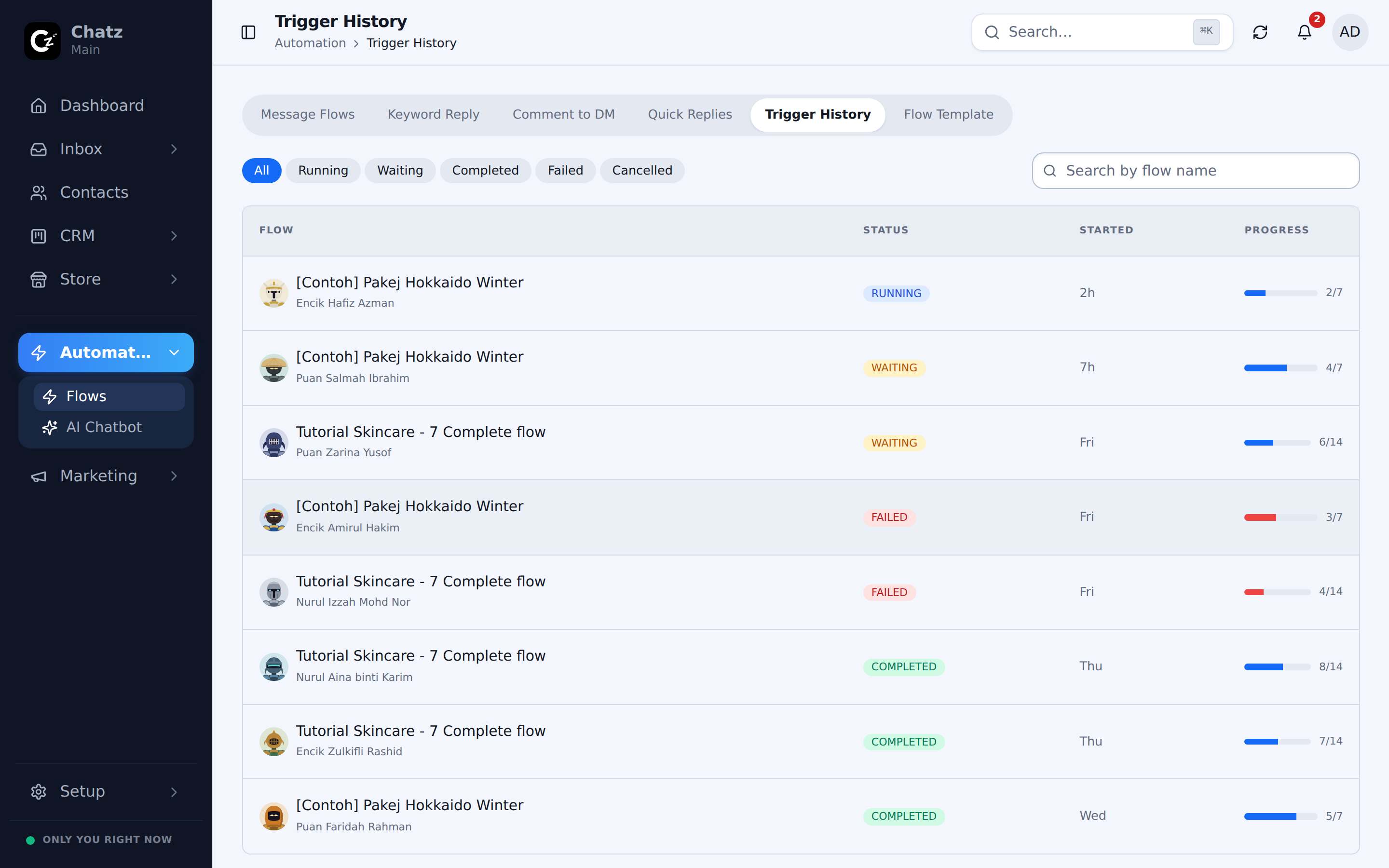
| Column | Shows |
|---|---|
| Flow | Which flow the run belongs to. |
| Status | Whether the run is in progress, completed, or failed. |
| Started | When the trigger fired and the run began. |
| Progress | How far through the flow's steps the run has reached. |
Drilling into a run
Open any run to see it step by step: which branch it took at a Condition, what it sent at each Send message step, and, if it stopped, exactly which step it stopped on. That detail is what turns "this flow did not work for one customer" into a specific step you can go fix in the editor.
Using it to debug
When a flow is not behaving as expected, Trigger History is the first place to look before changing anything in the editor. A run that failed shows where it failed; a run that finished but sent the wrong message shows which branch it actually took, which is often different from the branch you expected a contact's answer to trigger.