
Automation
Quick replies
Canned answers your team sends with a slash command.
What a quick reply is
A quick reply is a canned answer your team can drop into a conversation instead of typing it out again. It saves a body of text, and optionally an attachment, behind a short shortcut you type in the composer, which is the fastest way to keep answers consistent across a team without anyone memorising the exact wording.
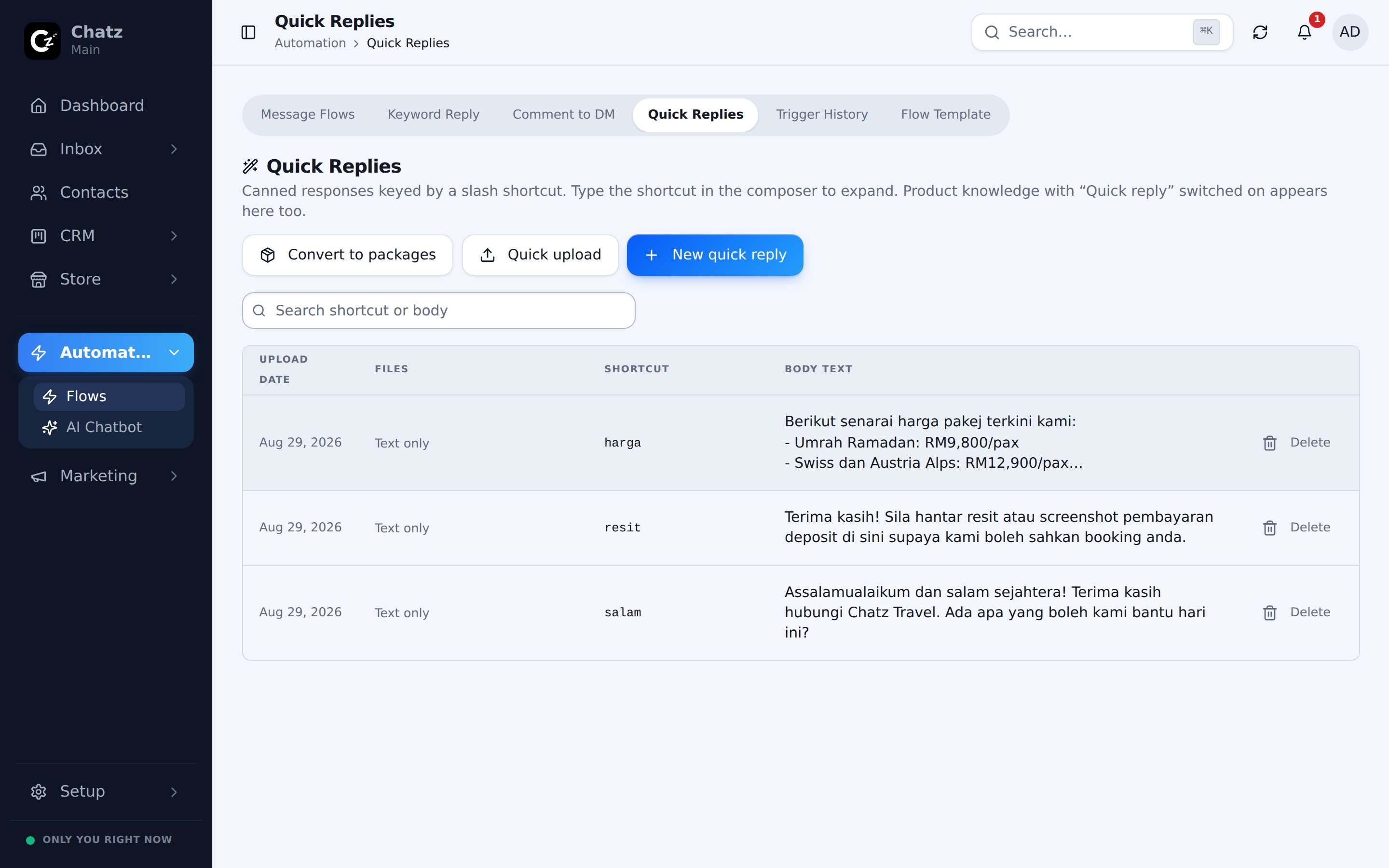
Folders and shortcuts
Quick replies are organised into folders, so a growing library stays easy to browse instead of turning into one long list. Each quick reply has a short shortcut you choose (the text you will type to find it), plus the message body it sends.
- Open Automation, then Quick RepliesYou will see your folders, and the quick replies inside each one.
- Add a folder to group related repliesFor example, one folder for shipping questions and another for pricing.
- Add a quick replyGive it a shortcut, write the body, and attach up to ten files if it needs them.
Attachments
A quick reply is not limited to text. Attach up to ten files, photos or documents to it and every use of that shortcut sends them all, in the order you added them, followed by the body, so a team member does not have to hunt down the right brochure, price list or set of room photos each time a customer asks.
Using them in the composer
In any conversation, type / in the composer to open the slash menu, then start typing the shortcut. The same slash menu also surfaces flows you can run directly from a chat, so the one keystroke covers both canned answers and full automations.
- Type / followed by the shortcut, then pick the matching quick reply.
- Selecting it fills the composer with the saved body and attaches every saved file, ready to send or edit first.