Contacts and CRM
Appointments
Book, confirm and track appointments straight from a chat.
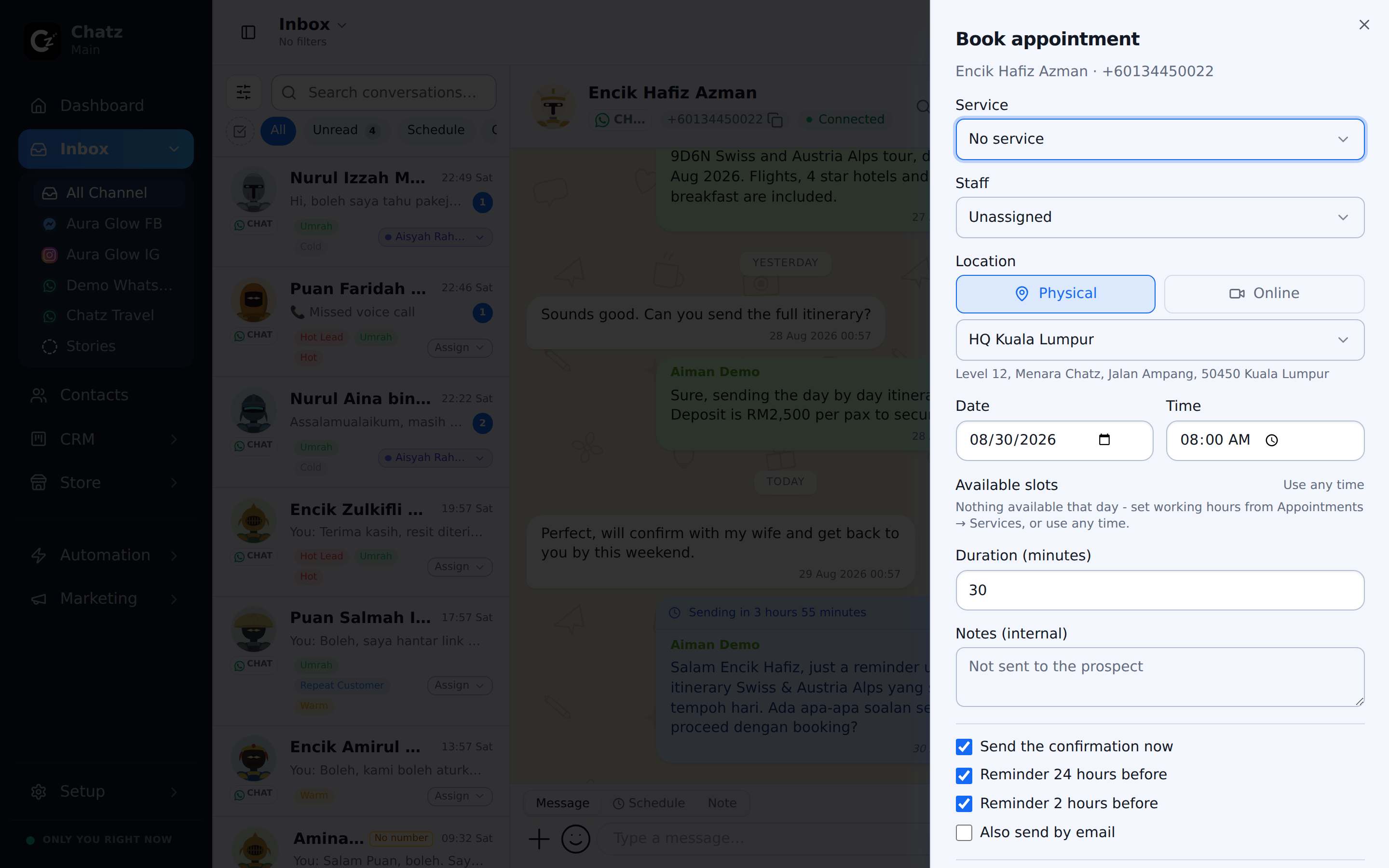
Booking from a chat
Appointments start where the conversation is: open the attach menu in the composer and choose Appointment to book one without leaving the chat. The appointment is created linked to that contact and that conversation, the same way a CRM ticket is, so anyone who opens either one later can trace it back to the original conversation.
This matters because an appointment rarely stands alone: a customer asks about a consultation slot or a store visit mid-chat, and booking it from that same composer means nobody has to copy the date, the contact details or the context into a separate scheduling tool by hand.
Views
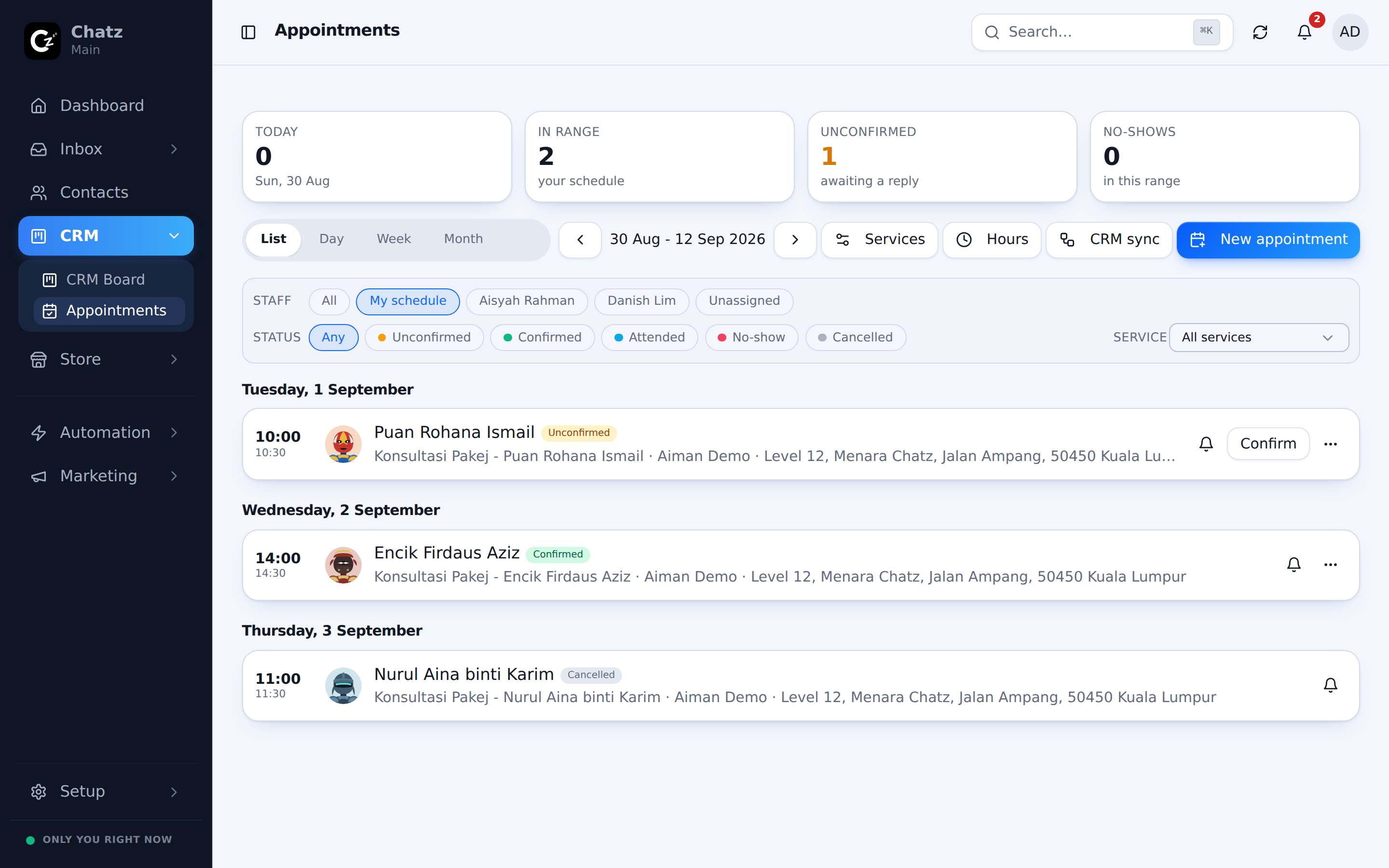
The Appointments page lists every booking across your workspace, and you can switch between List, Day, Week and Month layouts depending on whether you want a scannable list or a calendar view. Filter chips above the view narrow it down, for example to a single day or a single status.
Marking attendance
Once an appointment time passes, mark whether the contact turned up or was a no-show. This keeps the record honest and lets your team see attendance patterns for a contact at a glance from their history, which is useful before offering a repeat booking to someone who has missed a few in a row.
The public confirmation link
Every appointment comes with a public link (/a/token) that you can send the customer. They do not need a Chatz account to use it:
- Confirm the appointment.
- Cancel it.
- Reschedule it to a different time.
Reminders
Chatz sends appointment reminders automatically as the time approaches, so your team does not have to track upcoming appointments by hand to avoid a no-show.
- Book the appointmentFrom the Appointment action in the composer.
- Customer confirms or reschedulesUsing their public link.
- Reminder goes out automaticallyAs the appointment time nears.
- Mark attendanceOnce the appointment has happened.