Automation
Message flows
The visual builder: triggers, steps, conditions and AI steps.
The canvas
A message flow is a drag-and-drop diagram: a trigger at the top, then a chain of steps connected by lines. You build it on a zoomable, pannable canvas with a node config sidebar that opens whenever you select a step, plus undo, redo and a flow-level stats page once it has run for a while.
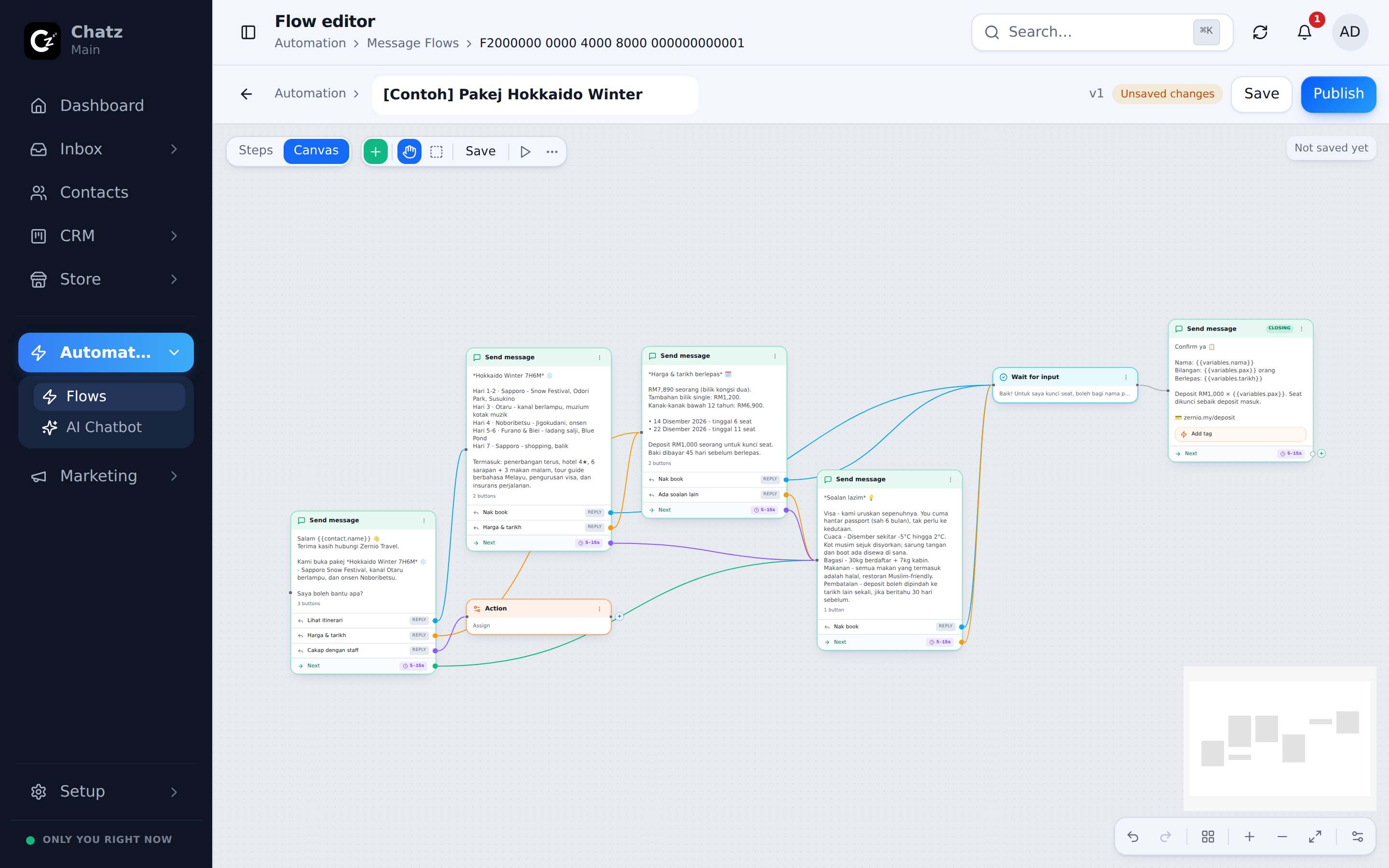
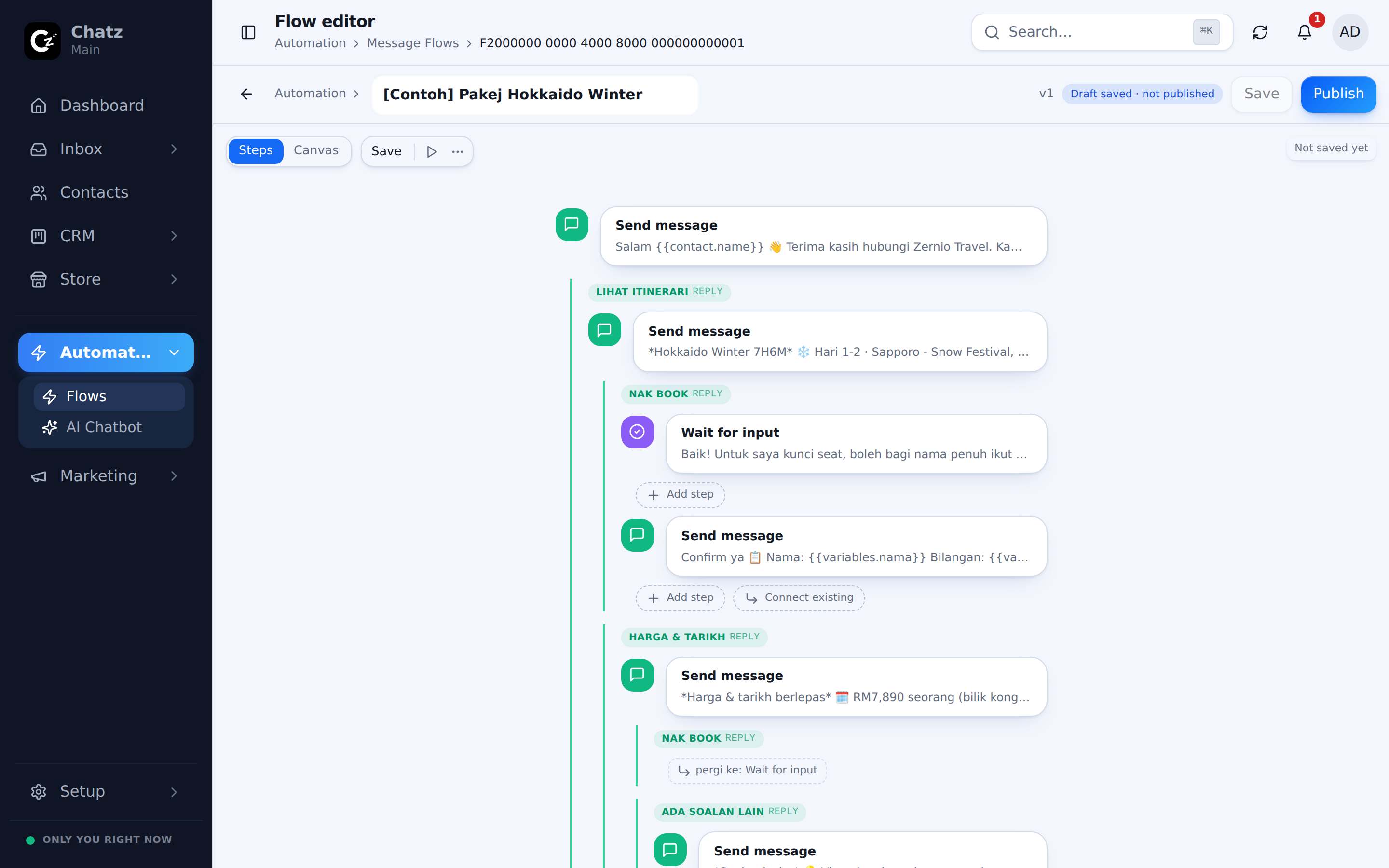
The editor has two views of the same flow, switched at the top left: Canvas lays it out as a diagram you pan and zoom, and Steps lists the same steps top to bottom, which is easier for reading a long flow through.
Triggers
Every flow starts from exactly one trigger: the event that sets it running.
| Trigger | Fires when |
|---|---|
| New chat | A contact messages you for the first time on a channel. |
| Outgoing message | Your team or another flow sends a message. |
| New contact | A contact record is created. |
| Contact updated | A field on a contact changes. |
| Ticket created | A CRM ticket is opened. |
| Ticket updated | A CRM ticket moves stage or changes. |
| Ad click | Someone messages you after clicking a Meta ad. |
| Order placed | A new order is created. |
| Order paid | An order is marked paid. |
| Order shipped | An order is marked shipped. |
| Another flow finished | A different flow ran to the end. See Follow-up flows below. |
A flow can also start from a matched keyword. That rule lives with Keyword replies, not in the flow editor itself, so the same keyword rule can point at a flow or at a plain canned reply.
Follow-up flows
Another flow finished runs this flow after other flows end, without changing any of them. It is how a seasonal offer rides along behind the flows you already have: the promo lives in one flow of its own, and ending it is switching that one flow back to Draft.
Pick the flows it follows under Run after these flows finish. Leave it empty and it follows every flow in the workspace. Only when that flow was started by narrows it further, so a promo can follow the flows a customer's own keyword or ad click started and skip the ones your team ran by hand.
| Setting | What it does |
|---|---|
| Wait before starting | Minutes between the flow ending and this one starting. Three by default, one minute at the least. |
| Active from / until | The days the follow-up may run, read in your workspace timezone. Both days count. |
| Only once per contact | On by default, so asking about five packages is not five copies of the same offer. |
| Skip if the customer writes in first | On by default. A customer who replies during the wait has a live question, and this flow would land on top of whoever is answering it. |
| Carry variables over | Names, answers and saved fields from the finished flow continue into this one. |
While it waits, the follow-up sits in the chat as a scheduled message, the same blue bubble a hand-scheduled message gets. Anyone reading the thread can see it coming and cancel it.
Steps
After the trigger, you chain together as many of these steps as the flow needs:
| Step | What it does |
|---|---|
| Send message | Sends text, an attachment, or a menu of up to three buttons or a longer list, with merge tags filled in from the contact. |
| Send email | Sends an email instead of a chat message, to a contact with an email address on file. |
| Delay | Pauses the flow for a set time before the next step. |
| Wait for input | Pauses until the contact replies, then routes on what they said. |
| Condition | Branches the flow based on a field, a tag or an earlier answer. |
| Action | Does something in the background: assign the conversation round robin, add a tag, and similar. |
| Go to flow | Hands off to another flow, so a common sequence can be reused. |
| AI chatbot | Lets your AI chatbot take over the reply for this step. |
Building a flow
- Add a triggerPick the event that should start the flow. Every flow needs exactly one.
- Add steps and connect themDrag a step onto the canvas, then draw a line from the previous step's exit to it. A Condition or Wait for input step can branch to more than one next step.
- Configure each stepSelect a step to open its sidebar: the message body, the delay length, the condition to check, or which flow to hand off to.
- Test, then publishRun the test simulator, fix anything that reads wrong, and the flow is live.
Merge tags
A Send message or Send email step can pull in the contact's name, phone number, or any custom field with the merge-tag picker in the sidebar, so one flow reads as personal to every contact it reaches. A flow can also carry its own variables, set by an earlier step (such as an answer captured by Wait for input) and reused further down the chain.
Testing and versions
The test-run simulator walks the flow step by step in the editor without sending anything to a real contact, so you can check the wording and the branching before anyone sees it.
Every save is kept as a version. The version history page lists past versions and lets you restore an earlier one if a change did not work out. The flow's stats page shows total runs, how many completed against how many failed, the success rate, the average duration, recipients per day, and which step fails most often, so you know where a flow is losing people before you go digging into Trigger history.
Pacing and visibility
A Send message step does not fire the next step immediately. It waits a randomised 5 to 15 seconds, redrawn every time. That is deliberate: WhatsApp does not only watch how fast a number replies, it watches how mechanical the pace is, and a number that answers in exactly the same instant every time reads as automated. The random window keeps a busy flow behaving like a person typing, which protects the number from being flagged. If you set a longer wait on a step yourself, that longer wait is always honoured exactly.