
Store
Orders and invoicing
Create orders in chat, send invoices and record payments.
Creating an order
There are two ways to start an order: from a conversation, using the + attach menu in the composer to pick Order/invoice, or from the Orders page directly. Either way, you pick products from your catalogue, and the order lands on the same list either route.
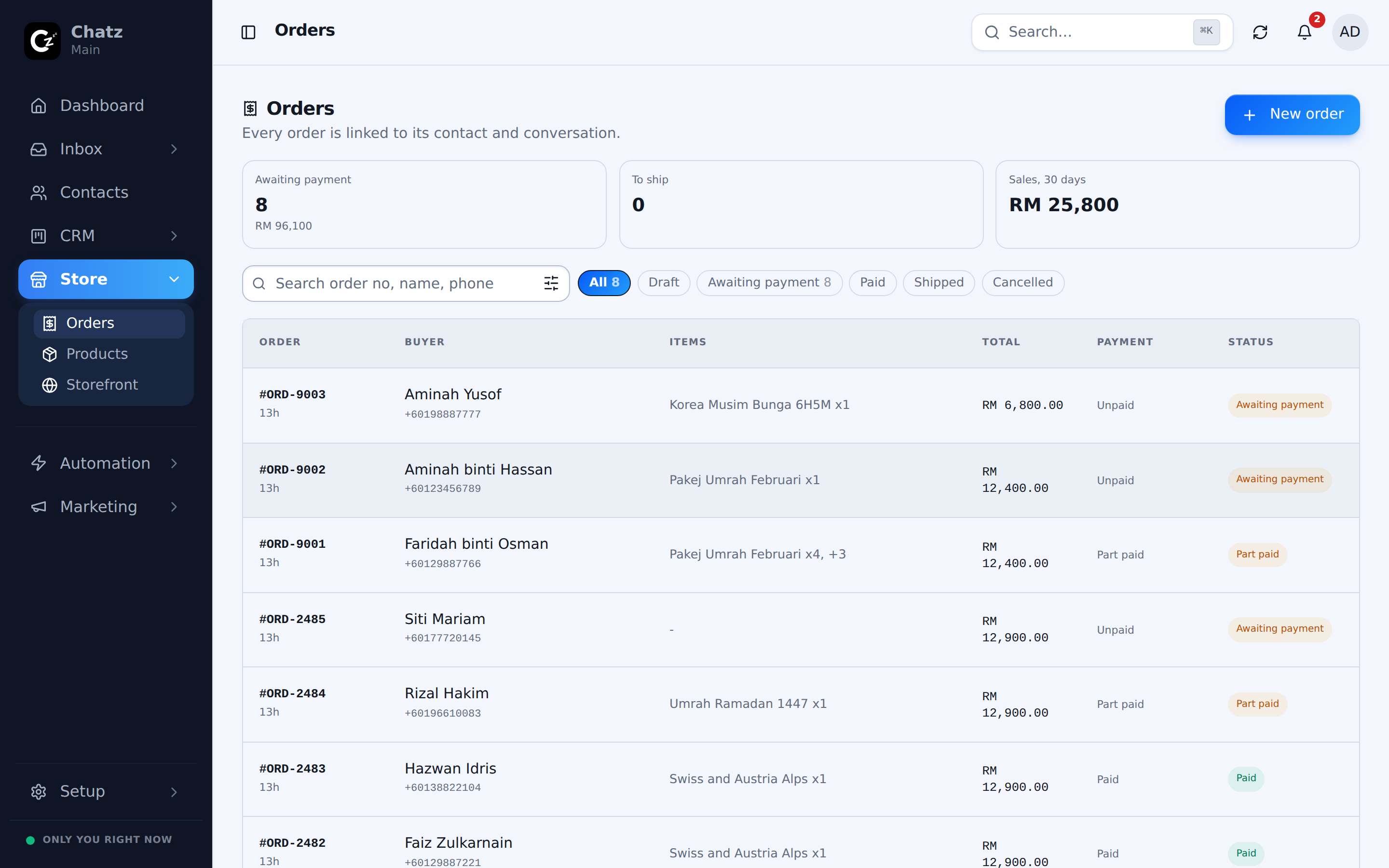
Order statuses
| Status | Meaning |
|---|---|
| Draft | Being built, not yet sent to the buyer. |
| Awaiting payment | Sent, waiting for the buyer to pay. |
| Paid | Payment has been recorded in full. |
| Shipped | Sent out to the buyer, for orders that involve delivery. |
| Cancelled | Called off; not counted toward sales. |
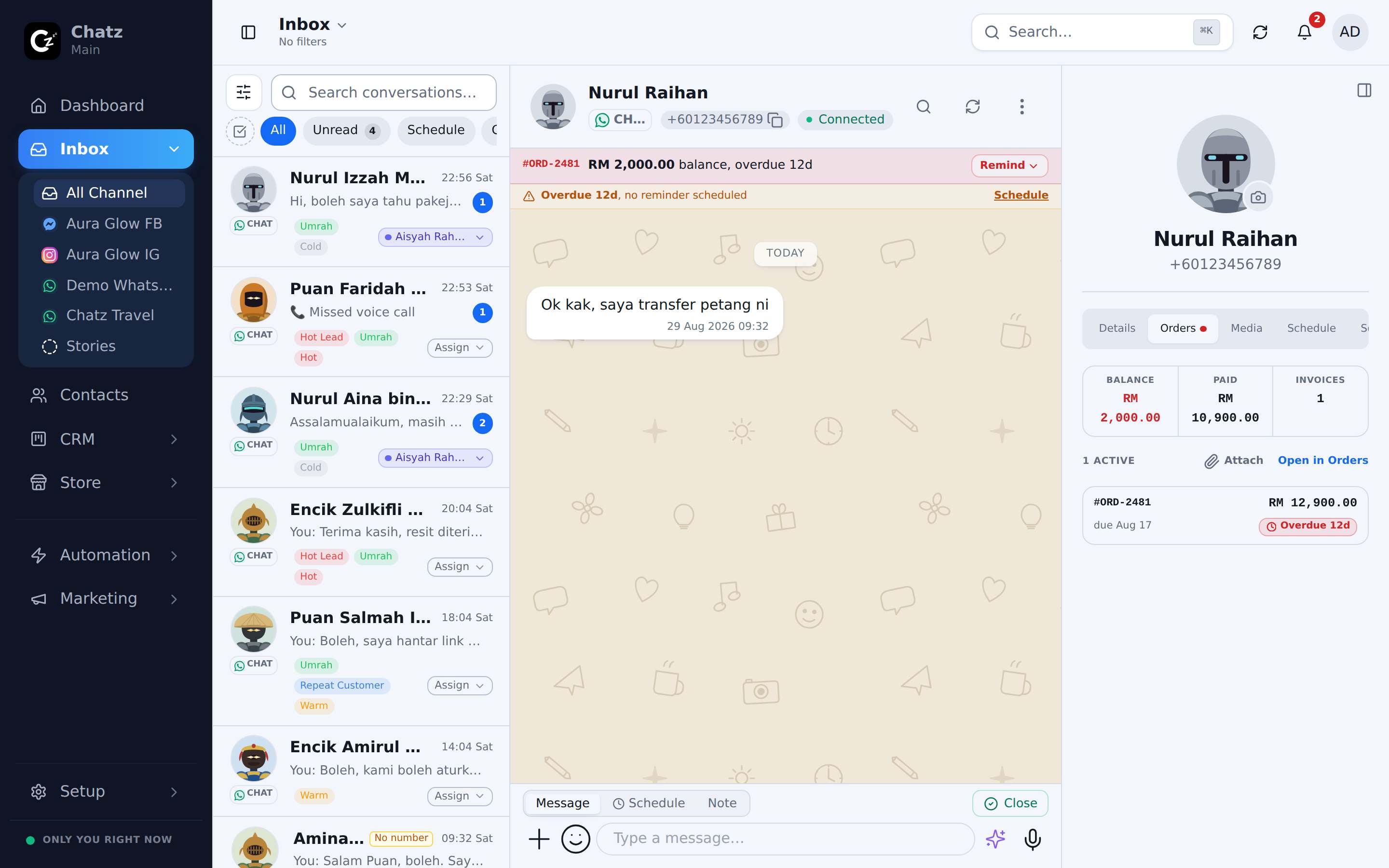
Recording a payment
When a buyer pays outside of an online gateway, for example by bank transfer, open the order and use Record payment to mark it paid yourself. This keeps every order's status accurate whether the money came in through Chatz or through your own bank.
- Open the orderFrom the Orders page or from the conversation it was created in.
- Press Record paymentEnter the amount received.
- ConfirmThe order moves to Paid.
The buyer's link
Every order gives the buyer a private link, at chatz.my/order/<token>, that needs no login. From it, a buyer can view the order, pay online where a gateway is connected, or upload a receipt as proof of a bank transfer for you to confirm.
Orders managed elsewhere
An order created by an external system, rather than in Chatz, shows a Managed elsewhere label, so your team can tell at a glance which orders they should update in Chatz and which are being kept in sync from somewhere else.
Payment reminders
An order left Awaiting payment can send the buyer automatic reminders over WhatsApp or email, saving your team from chasing every unpaid order by hand. Reminder timing is configured under Payments, and WABA reminder templates live under WhatsApp Business API.
- Reminders only go out for orders left Awaiting payment, not for any other status.