Automation
Keyword replies
Answer common questions automatically when a message matches.
What a keyword rule does
A keyword rule watches incoming messages and reacts the moment one matches a word or phrase you set, without an agent having to be online. It is the fastest way to answer a question you get all the time, such as your operating hours or a price, before the contact even reaches your team.
Creating a rule
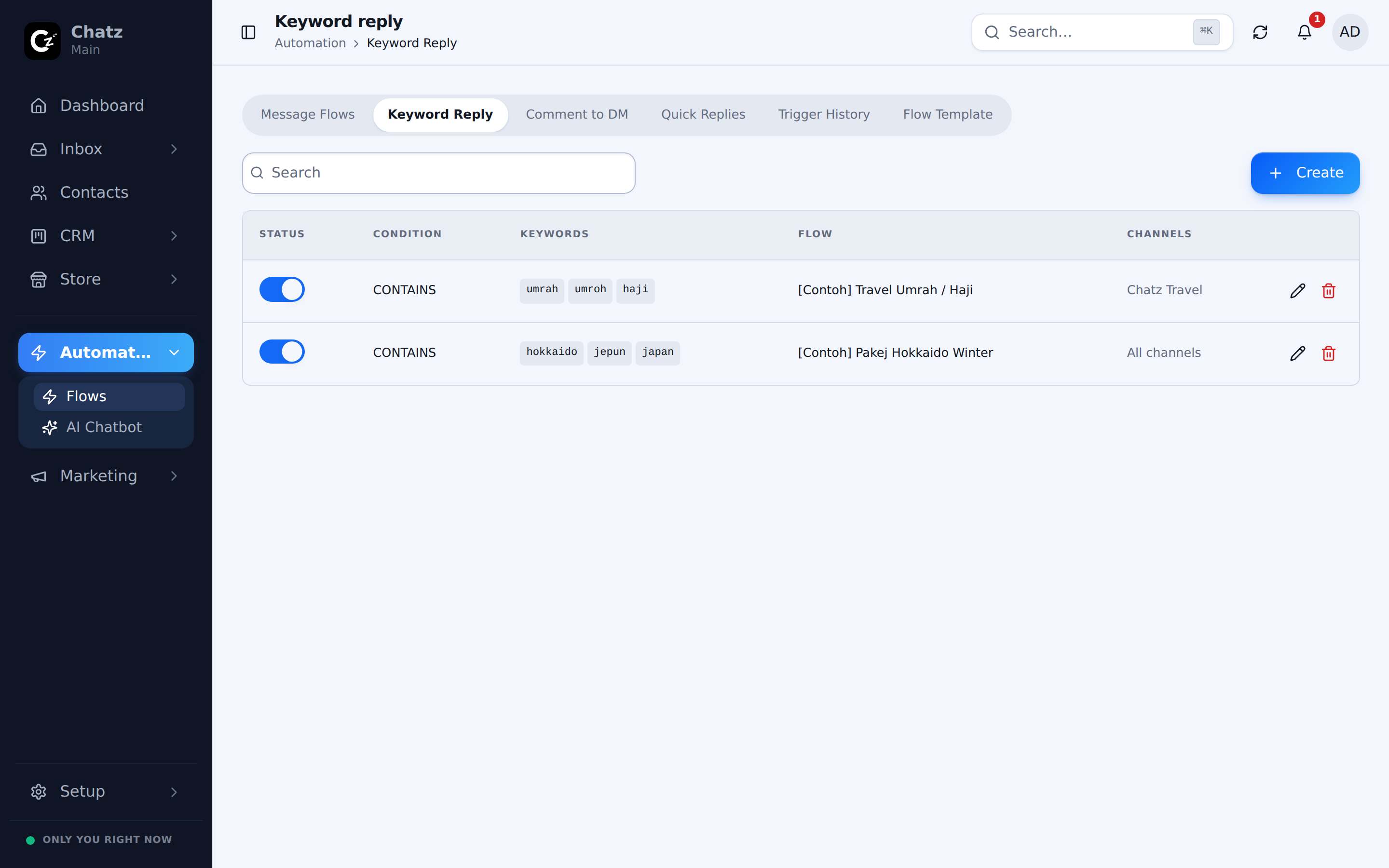
- Open Automation, then Keyword ReplyThe rules table lists every keyword rule in the workspace, with its match condition and whether it is on or off.
- Add a ruleSet the keyword or phrase to match, and what should happen when it matches: a message, or a flow.
- Scope itChoose which channels the rule applies to.
- Turn it onA rule only matches incoming messages once its toggle is on.
Matching and scoping
Each rule carries its own match condition, so you decide how loosely or tightly it should trigger. A rule is also scoped to specific channels rather than applying everywhere by default, which matters when the same word means something different on two channels, for example a keyword that should only fire on your Instagram DMs and not on WhatsApp.
| Setting | Purpose |
|---|---|
| Match condition | What in the incoming message counts as a match. |
| Channel scope | Which connected channels the rule listens on. |
| On or off | A quick way to pause a rule without deleting it. |
Frequency limiting
Frequency limiting stops the same rule from firing on the same contact over and over in a short space of time. Without it, a contact who repeats a keyword by accident, or a keyword that appears naturally in a longer back-and-forth, could trigger the same auto-reply several times in one conversation, which reads as a broken bot rather than a helpful one.