Marketing
Broadcasts
Send one message to many contacts, at a safe speed.
Start a new broadcast
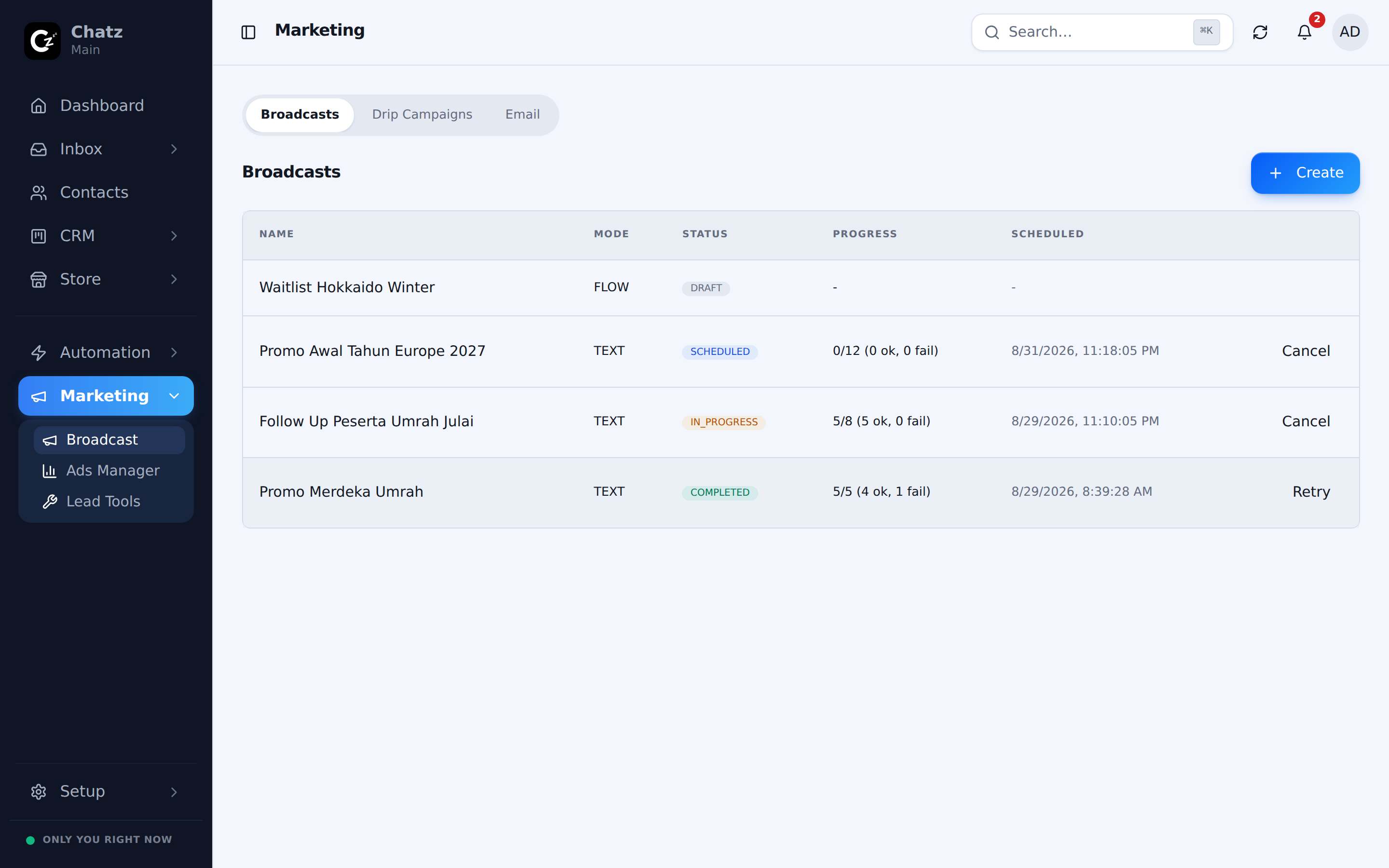
A broadcast sends one message to many contacts at once, the fastest way to reach your whole list about a promotion, an update or a reminder. Open Marketing then Broadcast and press Create.
- Name the broadcastA label for your own reference, shown in the broadcast list and its progress screen.
- Pick the channelChoose which connected channel sends the message. Some message types depend on this choice, since a WABA template can only go out on a WhatsApp Business API channel.
- Write the bodyAdd merge tags, such as a contact's name, so the message still feels personal at scale.
Choose a message type
The type you pick decides what the dialog asks for next.
| Type | What it sends |
|---|---|
| Text message | A plain message with merge tags, sent directly. |
| Flow | Enrols every recipient into an automation flow, so the broadcast can branch, wait and follow up rather than sending one line. |
| WABA template | A pre-approved WhatsApp Business API template, the only type allowed once a customer is outside the 24-hour service window. |
For more on templates and the 24-hour window, see WhatsApp Business API. For what a flow can do once someone is enrolled, see Message flows.
Pick your audience
Send to all your contacts, or narrow the list to one or more tags, for example only contacts tagged VIP or Interested, Not Booked. Tags are managed under Tags and tag groups, so build the audience there first if the segment you want does not exist yet.
Sending speed and safety
A broadcast does not send every message at once. You choose a sending speed preset, and each preset shows a risk badge next to its throughput in messages per minute, so you can see the trade-off before you launch.
The two kinds of WhatsApp number are paced differently, on purpose.
| Number | What limits a broadcast |
|---|---|
| Scanned by QR | A daily warmup cap, a random pause between messages, and your business hours in the workspace timezone. A broadcast bigger than the cap is sent in daily batches until everyone is reached. |
| WhatsApp Business API | Meta's own rules: the number's quality rating, and its messaging limit (how many people it may reach per 24 hours). There is no warmup cap, and the speed you pick is the pace. |
On a WhatsApp Business API number, a text or flow broadcast only reaches people whose 24-hour window is open. Everyone else is left out; send a template to reach them.
Preflight checks and progress
Before a broadcast launches, Chatz runs preflight checks, catching problems with the message, the audience or the channel before anything sends, rather than partway through.
- A check marked BLOCK stops the launch until it is fixed, for example identical text to more than 50 people on a QR number, or a text on a WhatsApp Business API number when nobody has an open window.
- A template broadcast shows the most it can cost at Meta's marketing rate. Ad leads still inside Meta's 7-day free window (they messaged from a Click-to-WhatsApp ad and were answered within 24 hours) are counted as free. Meta's invoice is what counts.
- Once launched, the broadcast shows its progress: sent, failed and skipped.
- A failed send can be reviewed alongside your other failures under Scheduled and failed messages.
Schedule, edit, stop and delete
- Pick Schedule under When to send later. A scheduled broadcast can be taken back to a draft with Edit any time before it starts.
- A draft offers Launch, Edit and Delete. Save draft keeps your work without sending anything.
- Stop halts a broadcast that is sending. Resume carries on from where it stopped, and nobody already reached gets it twice.
- If too many sends fail, or the channel's health drops, the broadcast pauses itself and shows Paused (safety). Check the channel, then press Resume.