Inbox
Replying to customers
The composer: attachments, notes, mentions, scheduling and quick replies.
Message or note
The composer has two modes, toggled at the top: Message sends to the customer, and Note writes an internal note that only your team sees, shown in yellow so it is never mistaken for something the customer received. Use a note to leave context for the next agent, such as "waiting on the customer to confirm size."
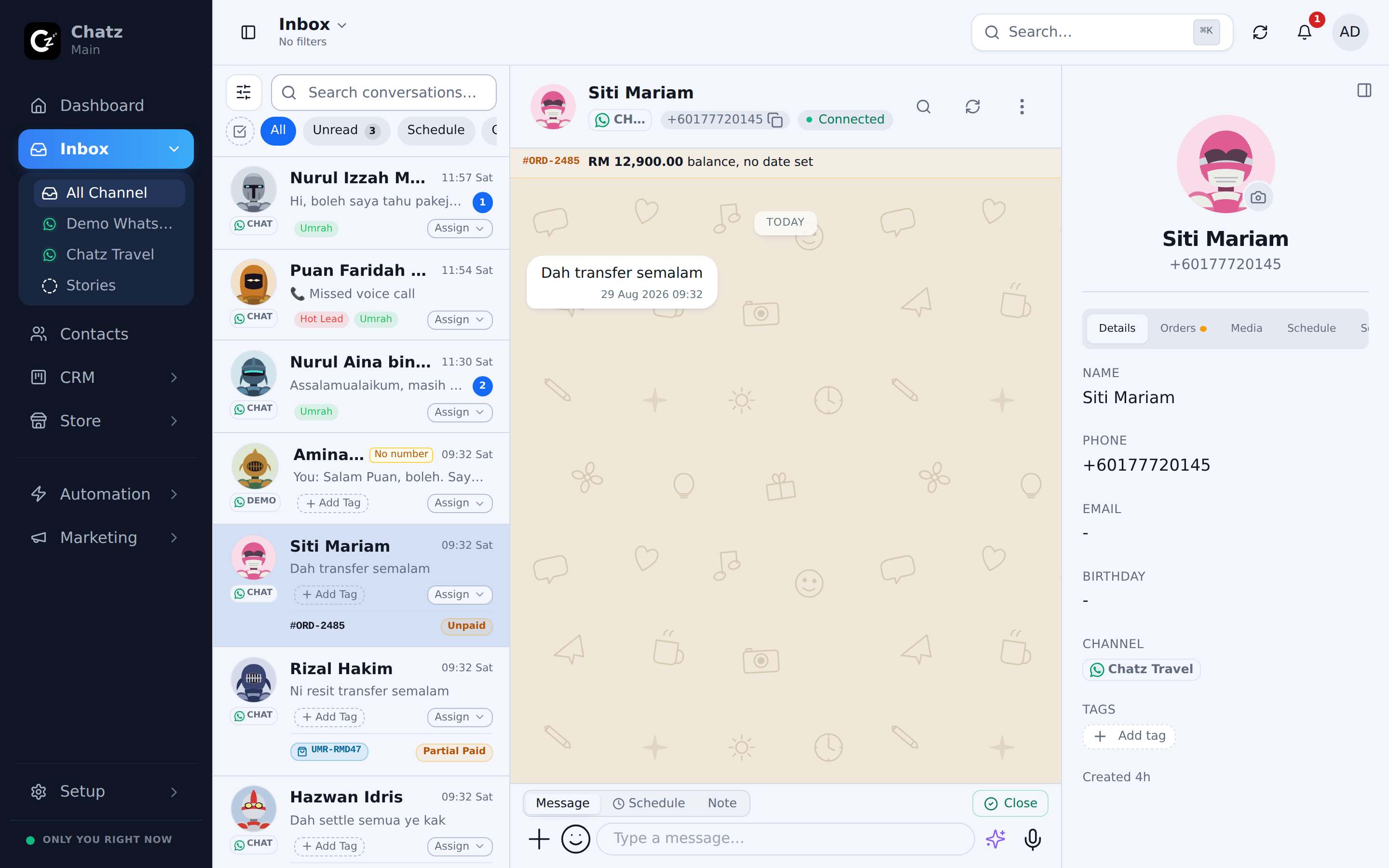
The attach menu
The + button opens everything you can send besides plain text. It covers photos and videos, the camera, a document, your location, a contact card, and two records that connect the conversation to the rest of Chatz: Appointment, which books a slot straight into the customer's calendar, and Order/invoice, which creates an order or sends an invoice without leaving the chat. The same menu can run a flow against this conversation, or, on a WhatsApp Business API channel, send an approved template.
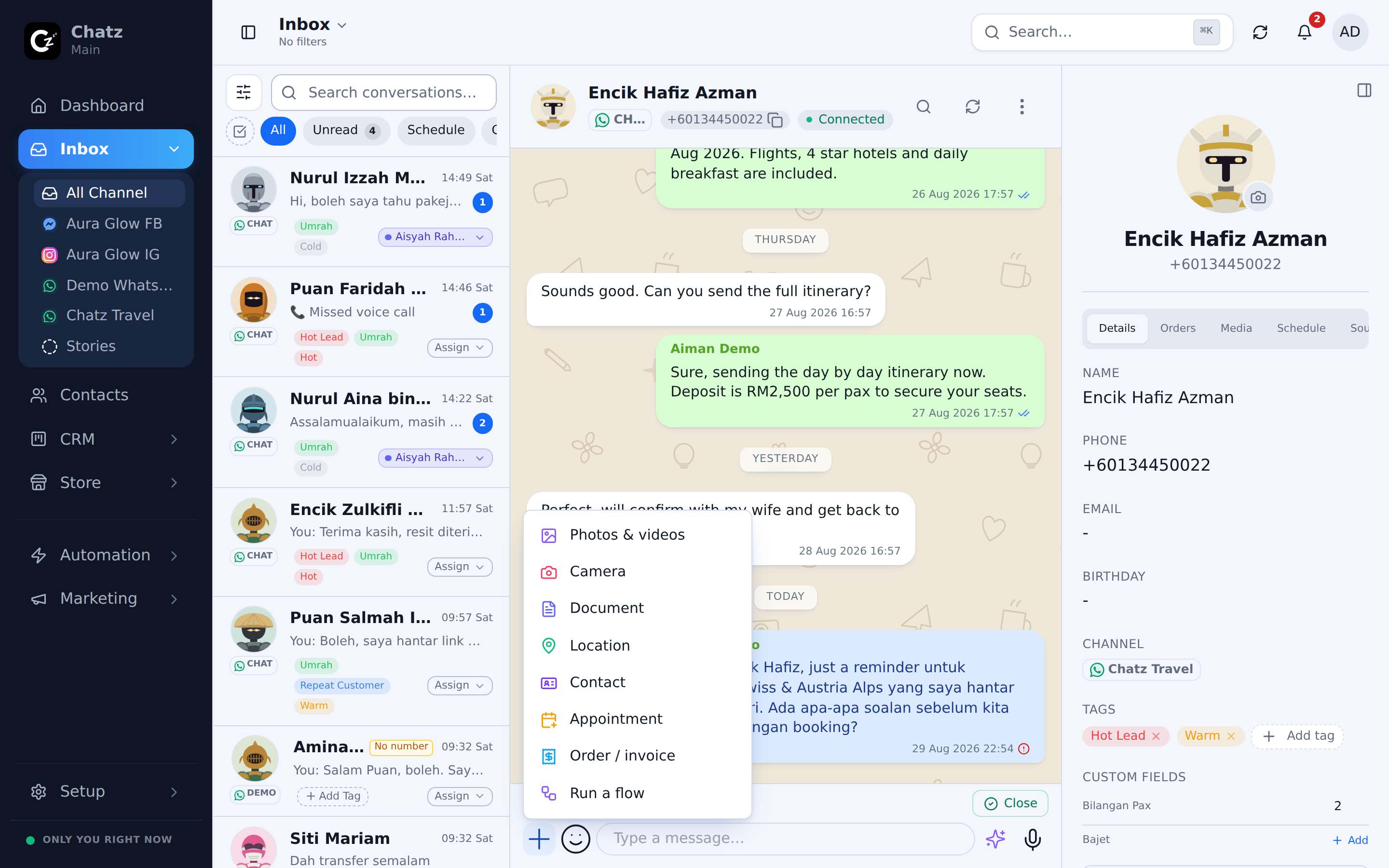
| Attach option | What it sends |
|---|---|
| Appointment | Books a slot; the customer gets automatic reminders. |
| Order/invoice | Creates an order or sends a payable invoice from this chat. |
| Run a flow | Starts an automation flow against this conversation, now or at a time you pick. You can attach files to that one run. |
| Template | A pre-approved message, available on WhatsApp Business API channels. |
Scheduling a send
Instead of pressing send, open the schedule popover to pick a future time. The message sits in Scheduled until then, and you can cancel it any time before it goes out.
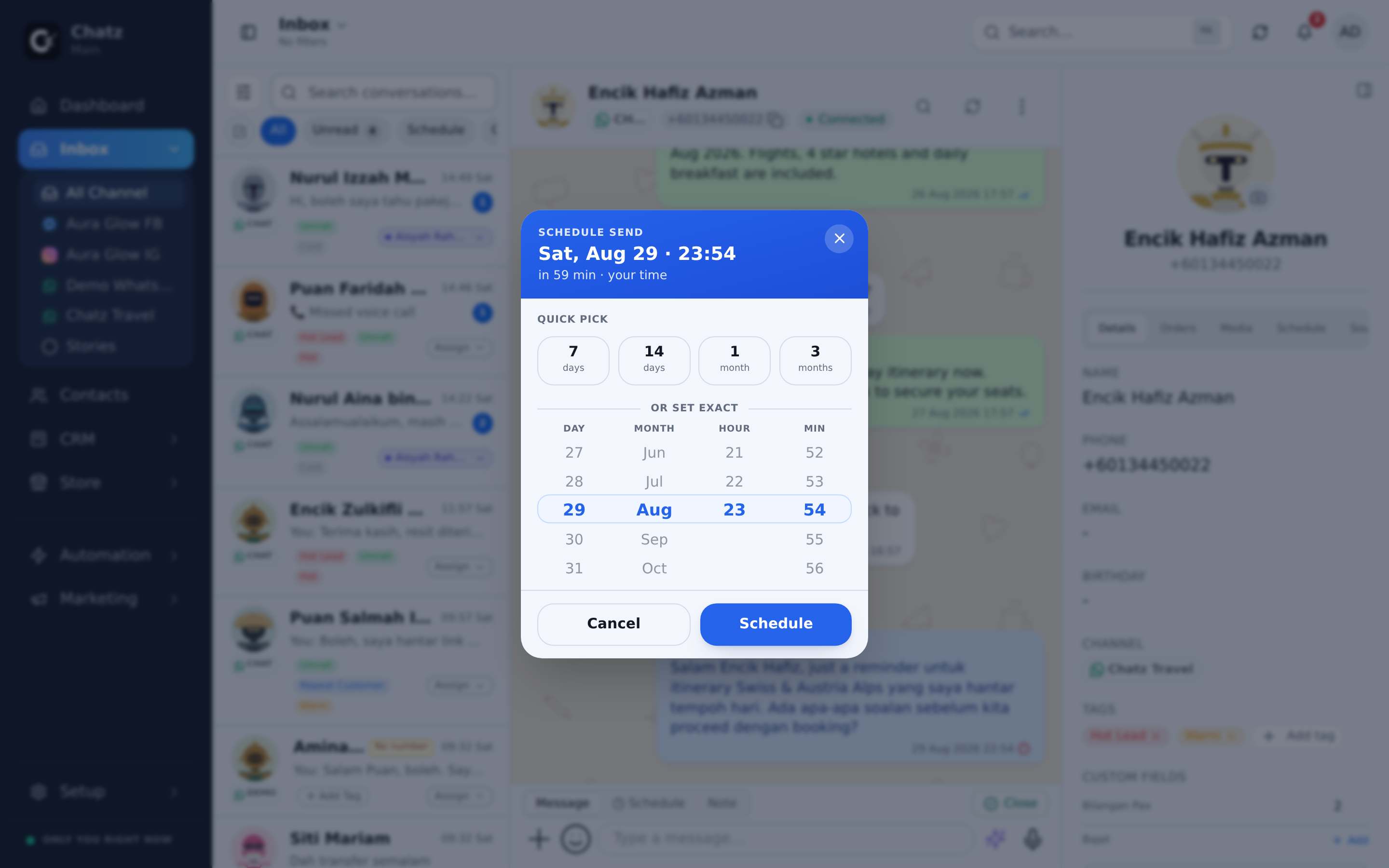
Attachments schedule the same way: stage the photo or document, pick a time, and the file goes out with the message. A flow can be scheduled too, from + Run a flow Schedule. If that flow needs a file this customer alone gets, an itinerary or an invoice, attach it in that same dialog: it is sent once, ahead of the flow's first message, and it is not saved into the flow, so the next run can carry a different one.
Quick replies and mentions
Type / in the composer to open a slash menu of your saved quick replies and flows, so a common answer is a few keystrokes away instead of retyped every time. Inside a note, typing @ mentions a teammate, which surfaces the note under their Mention Me filter.
Voice notes, forward and search
Record a voice note directly from the composer; Chatz can transcribe it, and it can transcribe voice notes the customer sends you too. Any message can be forwarded to another conversation, and the search icon in the chat pane finds a message inside the open conversation without scrolling back through the whole history.
The 24-hour window
A customer who came from a Click-to-WhatsApp ad is free to message for up to 7 days after your first reply, as long as that reply went out within 24 hours of their message. The banner turns blue and counts that down, and the button reads Send a template (free): once the 24-hour window is closed a template is still the only thing that goes out, but on an ad lead it costs nothing.
Send a template works like Run a flow: search the list, pick one, then read the whole message as the customer will get it before you commit to it. Anything the template leaves blank is asked for there, and it fills into the preview as you type. Then Send now, or Schedule it for a time you pick.
See WhatsApp Business API for what a template is and how to get one approved.