
Contacts and CRM
Contacts
Your customer list: import, export, merge and Google sync.
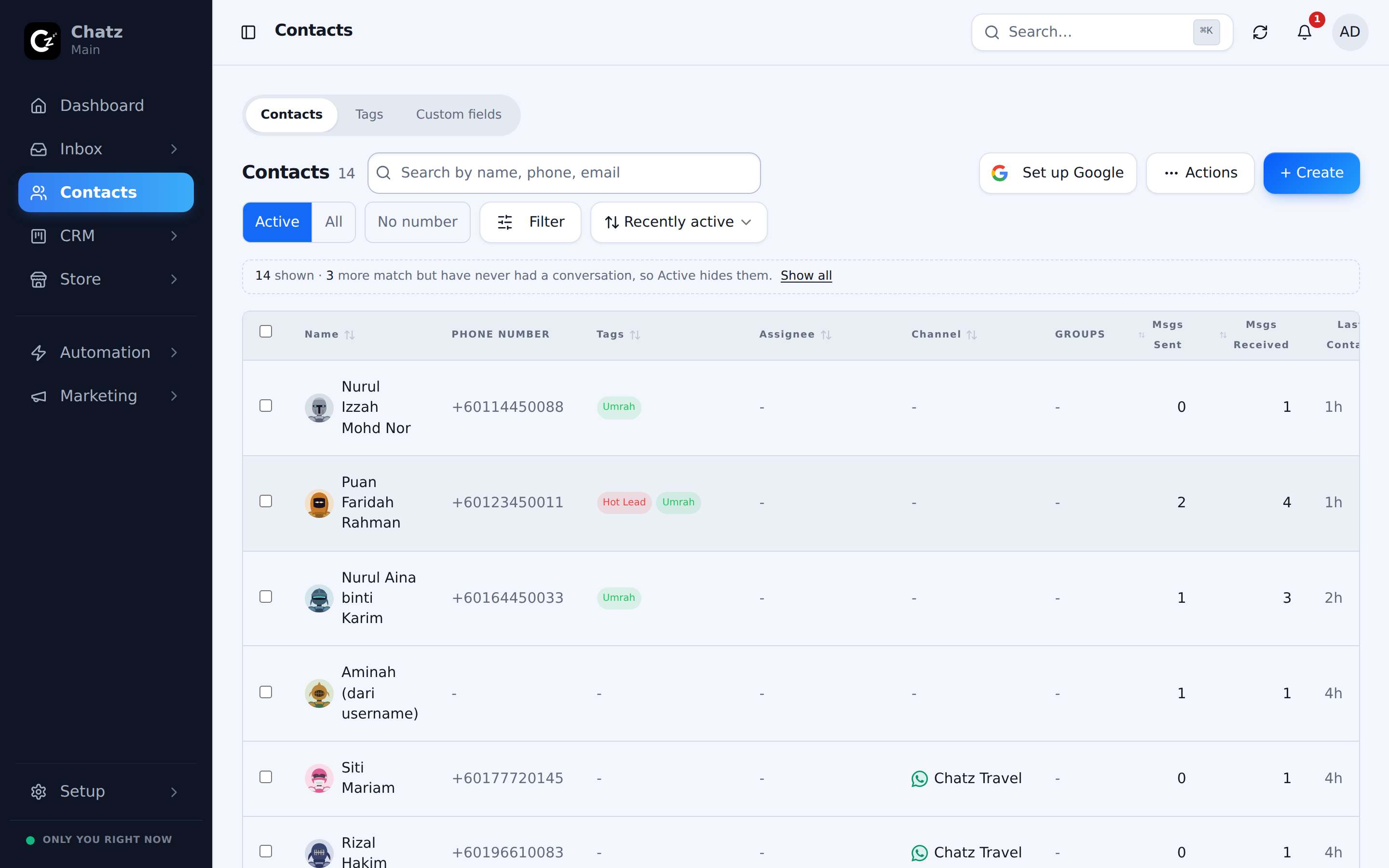
The contact list
Every person who has messaged you, or who you have added by hand, lives in Contacts. Sort the list by Recently active, Newest added, Name A-Z and more, and narrow it with the filters above the list. Select several contacts to open the bulk toolbar, for actions like tagging or exporting a subset at once.
The contact drawer
Open any contact to see their drawer: profile details, the custom fields your workspace has defined, their orders, where they came from, and any invoices tied to them. It is the same profile whether you open it from the contact list or from the conversation panel in the inbox.
Import from CSV
Bring an existing customer list in with Import. It reads a CSV file, so export your list from wherever it lives today (a spreadsheet, another CRM) and upload it. Map each column to a Chatz field, including any custom fields you have already set up, and Chatz creates or updates the matching contacts.
- Press ImportAbove the contact list.
- Choose your CSV filePick the file from your device.
- Map the columnsMatch each column to a Chatz field, then confirm the import.
Merge duplicates and export
A phone number or an email address can end up saved twice, especially after an import. Merge duplicates finds contacts that look like the same person and combines them into one record, keeping their full conversation and order history. When you need your list outside Chatz, Export writes the current view, filters included, back out to a file.
Sync with Google
Google Sync keeps your Chatz contacts and your Google contacts lined up, in either direction or both. It is set up once per workspace under Integrations, not from the contact list itself.
- Google to Chatz: new or updated Google contacts flow into Chatz.
- Chatz to Google: contacts you add in Chatz appear in Google too.
- Both: changes on either side stay reflected on the other.