Inbox
Notifications
Your notification center, mentions and notification preferences.
Notifications
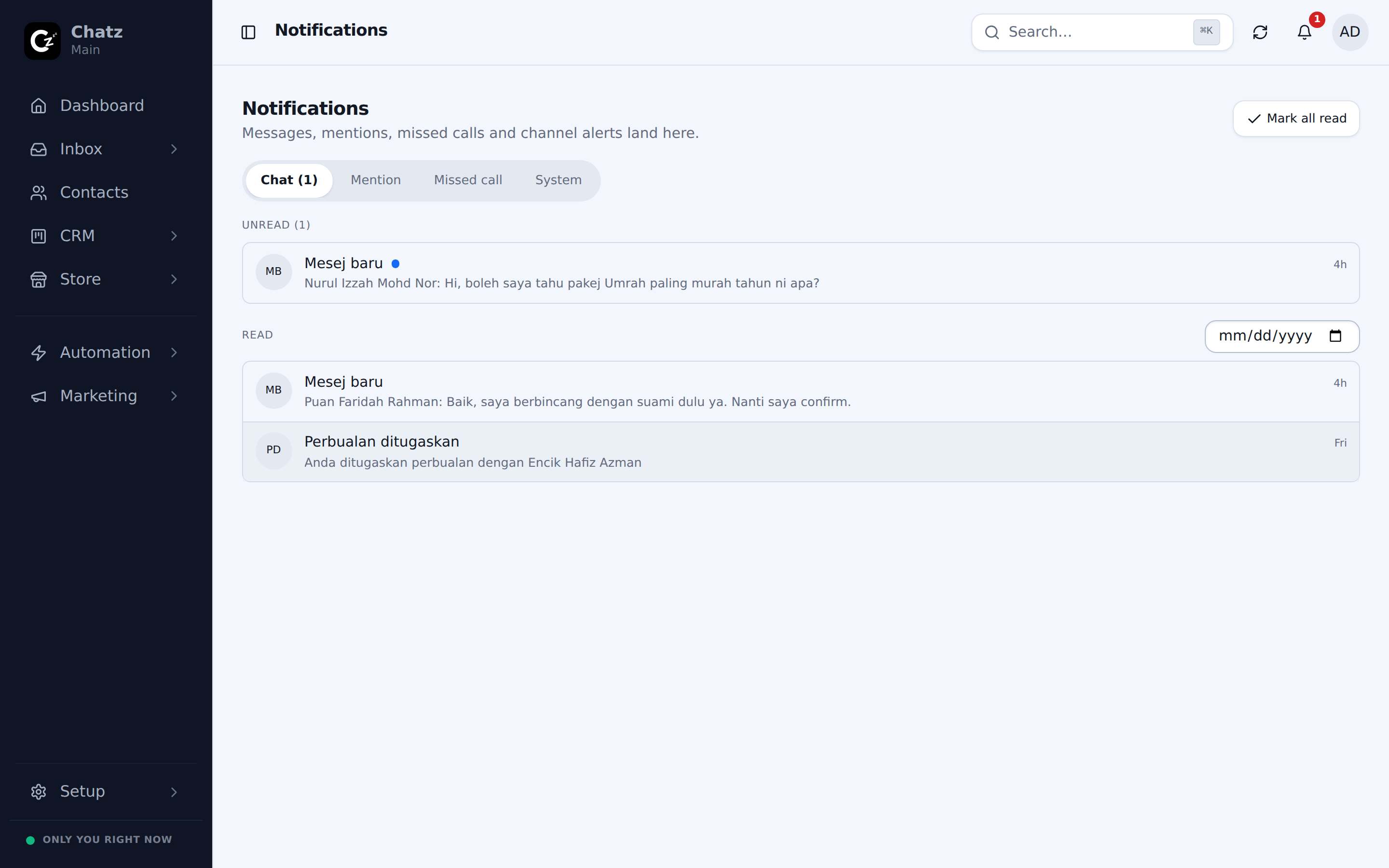
The bell in the top bar opens your notification center, split into four tabs, each with its own unread count: Chat, Mention, Missed call and System. Chat covers new messages, Mention is for when a teammate @mentions you in an internal note, Missed call surfaces calls nobody picked up, and System covers everything else Chatz needs to tell you.
| Tab | What lands there |
|---|---|
| Chat | New messages across your conversations. |
| Mention | Internal notes where a teammate mentioned you. |
| System | Everything else: account and workspace notices. |
Preferences and push
Each person sets their own notification preferences under Settings, then Notifications, so a busy agent and a hands-off owner can tune what reaches them differently. On a phone where Chatz is installed as an app, notifications arrive as real push notifications, the same as any other installed app, rather than only appearing while the browser tab is open.
An owner or admin can also switch a whole channel off for one teammate, from Settings, then Members, by opening that person and using Notifications. Turn Email or Push off there and nothing on this workspace reaches them that way, whatever their own switches say. Their preferences are kept, so giving the channel back restores exactly what they had. They can see it is off on their own settings screen, and only an owner or admin can turn it back on. Owners are never blocked, and the bell inside Chatz keeps working either way.
A whole channel can also be muted for everyone, from Channels, the channel’s Settings, then Notifications. The channel keeps working exactly as before, receiving and sending, and its chats keep appearing in the inbox: nobody is simply alerted about them. Use this for channels your team does not need notifications from. Assignments, mentions, and warnings about the channel itself, such as an access token about to expire, still come through.