
Store
Payments
Take FPX, cards and e-wallets with CHIP, or keep it manual.
No gateway: bank transfer
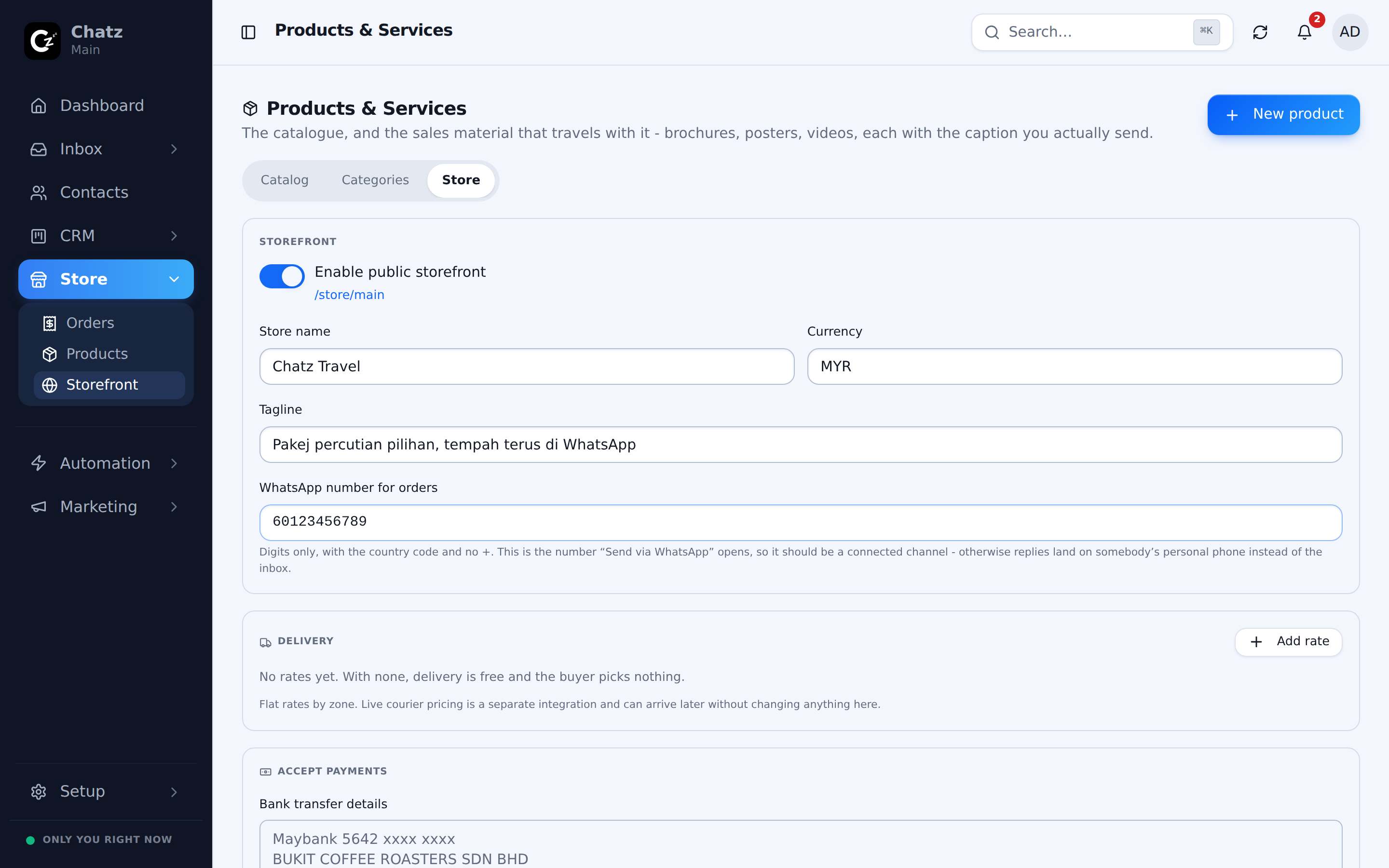
Store settings start with Accept payments switched on and a choice of gateway. The simplest option is No gateway: a buyer pays by bank transfer and uploads a receipt through their order link, which you then confirm with Record payment. It needs no setup and no third party account, so it is a reasonable way to start taking orders before connecting a payment gateway.
CHIP: cards, FPX and e-wallets
For online payment, connect CHIP, a Malaysian payment gateway supporting FPX bank transfers, cards, e-wallets and buy-now-pay-later. A buyer pays directly on their order link or during checkout, and the order updates to Paid automatically once the payment clears, no manual confirmation needed.
- Get your CHIP credentialsFrom your CHIP account: a Brand ID and a Secret Key.
- Enter them under Store settingsPaste the Brand ID and Secret Key into the CHIP gateway fields.
- SaveCHIP becomes the active gateway for new orders and storefront checkouts.
Shipping rates
For products that ship, set shipping rates in Store settings so the storefront and order forms can quote a delivery cost at checkout instead of leaving it to be worked out afterward.
Payment reminders
Configure how many days before you want a reminder sent, and whether it goes by WhatsApp, email or both, for any order left Awaiting payment. This is the same setting referenced from Orders and invoicing and, for WABA channels, the templates it uses live under WhatsApp Business API.
| Gateway | When to use it |
|---|---|
| No gateway | Simplest to start, buyers pay by bank transfer and upload a receipt. |
| CHIP | Automatic online payment: FPX, cards, e-wallets and buy-now-pay-later. |
- Reminders only fire for orders left Awaiting payment, so a paid order never gets one.