
Channels
WhatsApp by QR code
Connect a personal or business WhatsApp number in 30 seconds.
Connect in about 30 seconds
WhatsApp by QR code connects a real WhatsApp number, personal or business, the same way WhatsApp Web does: by scanning a code with your phone. There is no application or Meta approval to wait on, so it is usually the fastest way to get a working channel.
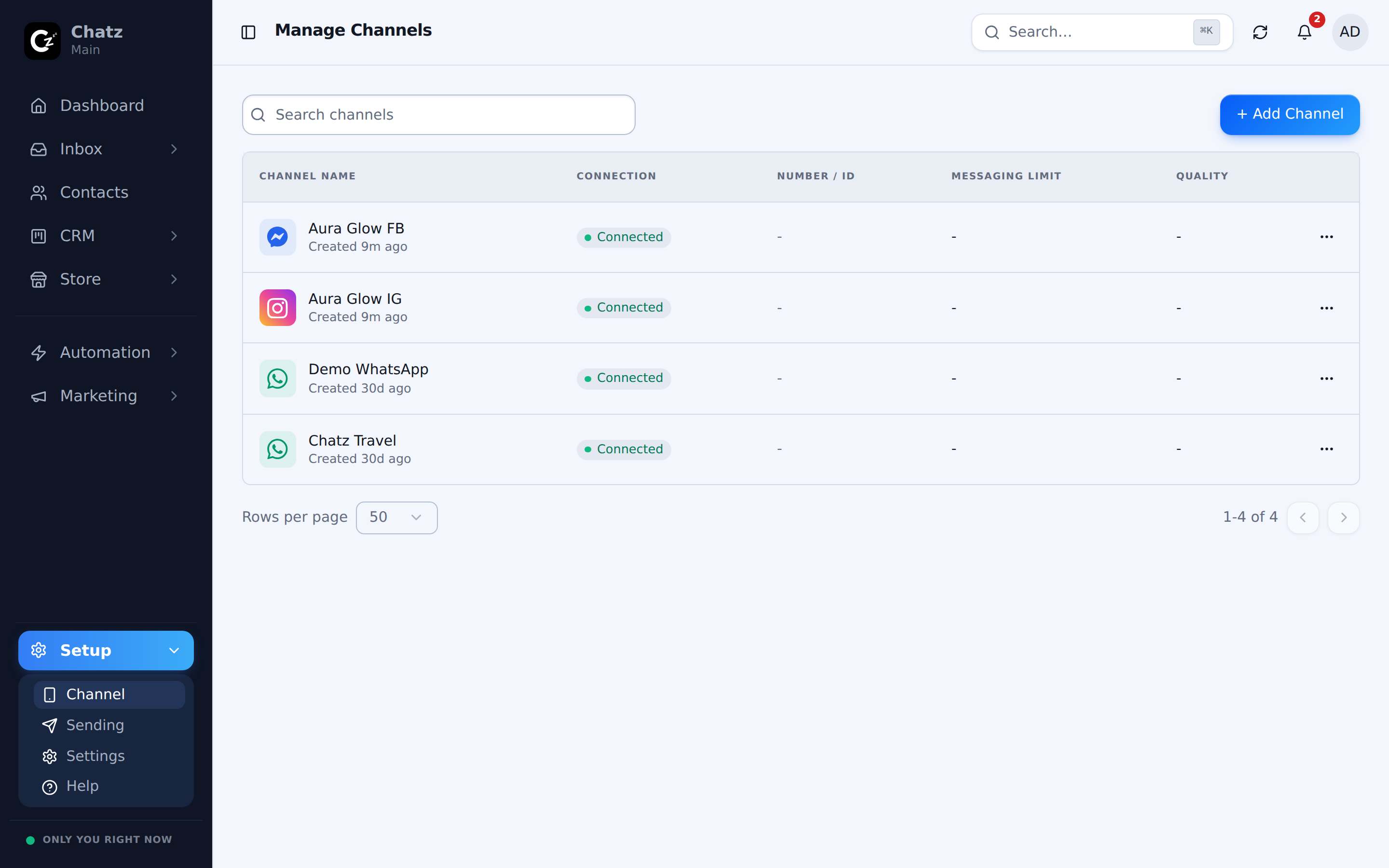
- Open Channel and choose WhatsApp by QR codeUnder Setup in the sidebar.
- Scan the code with your phoneOpen WhatsApp on the phone the number belongs to, and use its device-linking screen to scan.
- Wait for it to connectChatz confirms once the link is established.
What it is good for
A QR channel is the right choice when you want to start replying from an existing WhatsApp number today, without going through the official API application process. It behaves like WhatsApp on your phone: any chat history already on that number is not imported the way the official API can, and the number carries the ban risk that comes with WhatsApp itself, rather than being hosted by Meta. It suits a small team, or a single owner-run number that already has real customer relationships attached to it, more than a large blast-sending operation.
Keep your phone online
A QR channel is linked to a real phone, so that phone needs to stay reasonably connected to the internet for the channel to keep working. If it stays offline for a long stretch, the link can drop and need reconnecting.
Safety and warmup
Calls
Chatz cannot make or answer calls; a call always happens on the phone the number lives on. What a QR channel does get is missed-call notifications: a call nobody picked up is recorded in the customer's thread and in the notification center. QR channels are the only channel type with this. Auto-decline and an automatic reply after a missed call are configured per channel, under Channel settings, in the Calls section.